
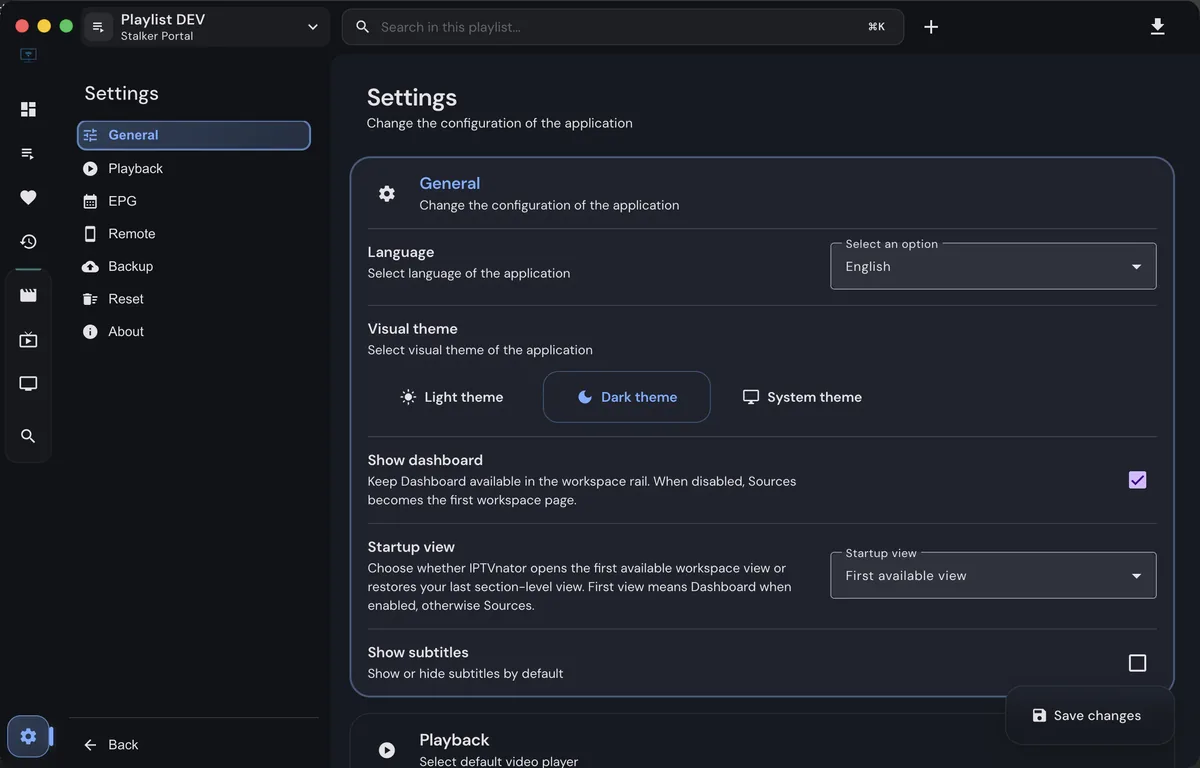
If you are searching for IPTVnator install, start with the verified platform path and a small first-launch test before changing playback or playlist settings.
Choose the IPTVnator install path
The shortest reliable answer to IPTVnator install is to choose the official release asset that matches your platform, then verify that the application opens before importing a source. The current release evidence checked for this guide is v0.24.0, published on September 24, 2026. The release page remains the source of truth when a package name, checksum or asset availability changes.
Desktop first-launch steps
For Windows, download the x64 setup executable and let the installer finish before testing a playlist. On macOS, choose the DMG for Apple Silicon or Intel, move the app to Applications and read any Gatekeeper message instead of downloading a second copy. Keep the first launch simple: confirm the version in About, check that the interface responds, and only then move to playback settings.
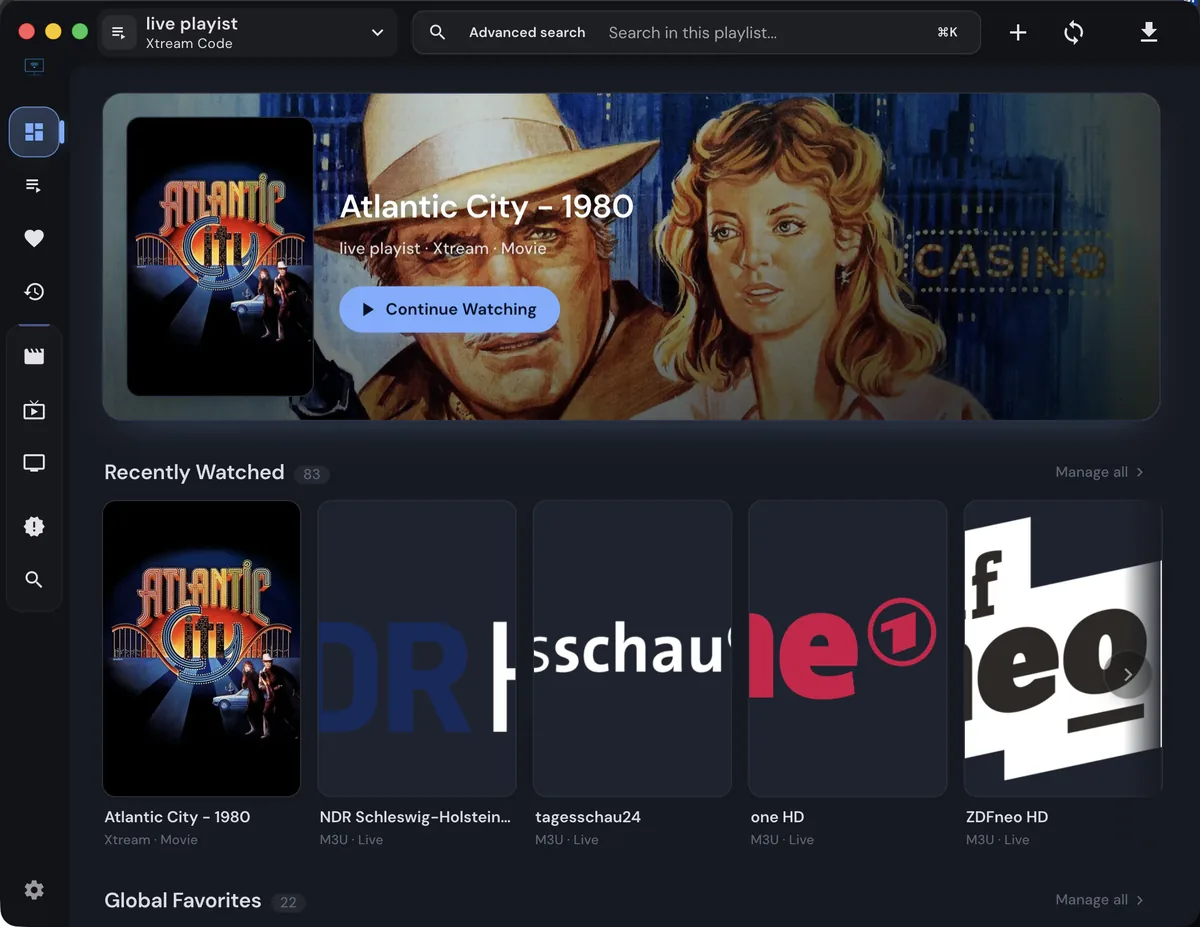
Linux packages and requirements
Linux offers more than one valid path. AppImage is convenient when you want a portable file, while deb, rpm, pacman, Flatpak and Snap follow different package and sandbox rules. Homebrew and Snap commands are documented by the project, but a package manager still does not remove the need to check architecture, permissions and the release source. Embedded MPV on Linux is experimental and may require X11 or XWayland plus a system mpv executable.
Web and Docker are different paths
The web and Docker choices solve a different problem from a desktop install. The PWA runs in a browser, and the Docker compose workflow builds the PWA with its web backend for self-hosting. Plan HTTPS, a reverse proxy, persistent storage that you control and browser request behavior. A container can proxy remote playlist requests, but it cannot make an expired provider account, unsupported codec or unauthorized stream work.
The phrase IPTVnator install describes a specific task around installing IPTVnator across desktop, web, and self-hosted paths. This guide keeps that task visible from the first paragraph, then explains the decisions that matter before you click, import, update or troubleshoot. IPTVnator is a player and organizer, so the useful answer depends on the source you are authorized to use, the device running the app and the playback path selected by the release.
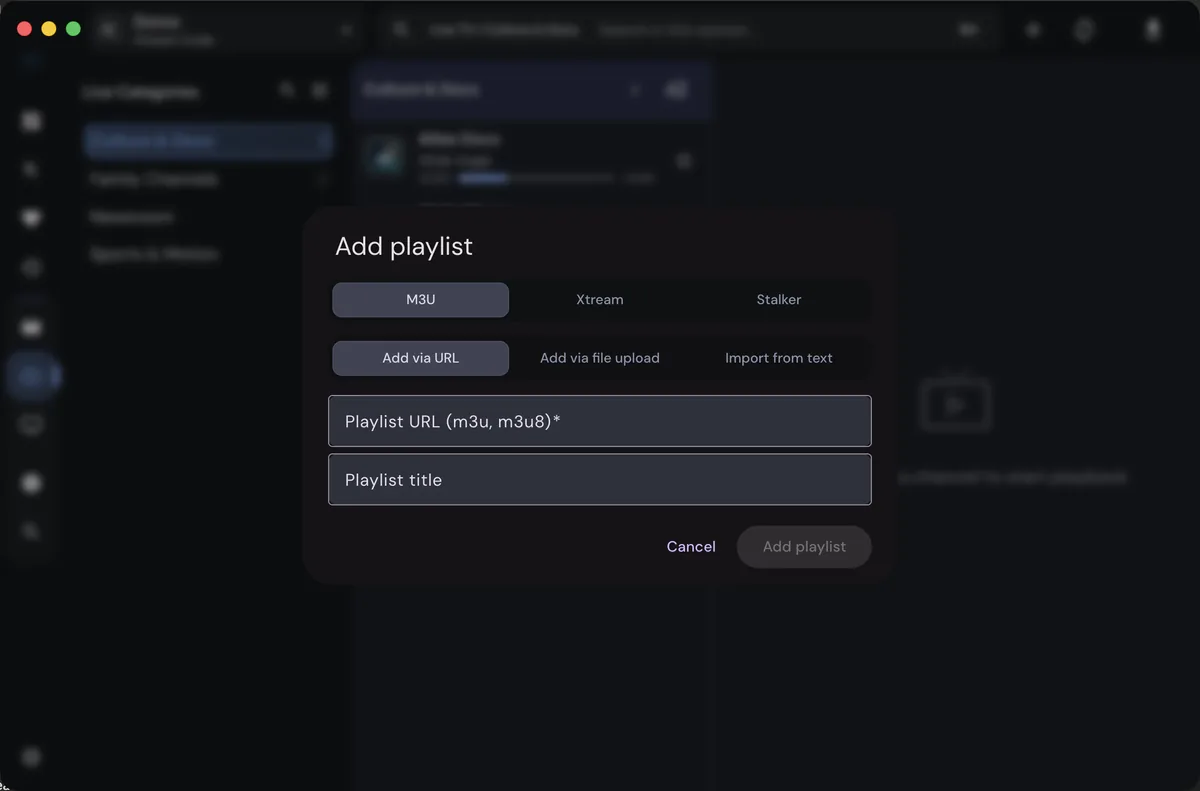
Use this page as a focused reference for IPTVnator Install Guide: Desktop, Web and Docker. It is not a promise that every provider, codec, portal or device will behave identically. Release builds, browser capabilities and provider responses can change independently. The goal is to give you a repeatable way to inspect the relevant setting, test one small input and keep the result understandable rather than changing several variables at once.
A calm workflow starts with one known-good item. Confirm the application version, note the operating system, check whether the source is still authorized and test a single channel, account endpoint or preference. Once that small test works, add the next part. If it fails, the error is easier to connect to choosing a package, browser route, or container while keeping the first test reproducible, which is more useful than replacing a complete playlist without evidence.
Platform differences are important for Windows, macOS, Linux, Web/PWA, Docker, Homebrew and Snap. Desktop builds may have local storage and operating-system integrations, while the web or PWA path depends on browser codecs, permissions, HTTPS and cross-origin behavior. A Docker deployment may add a proxy or persistence layer. Treat a successful test on one platform as useful evidence, not as proof that every other platform has the same capabilities.
For a safe choose a verified IPTVnator installation path, read the official project release information before trusting a filename or download button. Compare the version, architecture and package type with the project-controlled source. This site does not repackage IPTVnator, create alternative installers or replace missing release assets with an unknown mirror. A source link that is clearly labeled is better than an unverified shortcut.
IPTVnator can work with private account details, playlist URLs and provider metadata, but IPTVnator.wiki does not need those secrets. Do not paste a username, password, token, MAC address, signed stream URL or private EPG endpoint into a support form or screenshot. Replace sensitive values with neutral examples when asking for help, and keep your own backup in a location you control.
When a result is wrong, compare the same authorized input in a second approved player only as a diagnostic step. If both players fail, investigate the source, account status, expiry time or provider response. If one player works and another fails, inspect codec support, browser restrictions, external-player settings and the exact build. This separation makes installing IPTVnator across desktop, web, and self-hosted paths easier to reason about.
The visible checklist below turns the page into a small test plan. Work from the least invasive check to the most specific one: confirm the URL or setting, refresh once, inspect the error text, test another item, then compare platforms or players. Record what changed after each step. Do not delete useful evidence by repeatedly importing the same source with different credentials.
Some IPTVnator results are limited by information that the app cannot invent. A missing logo, empty EPG grid, expired signed URL, blocked browser request or unsupported audio track may come from the source rather than the interface. The player can display metadata it receives, but it cannot create provider data, renew an account or make an incompatible stream legal and playable.
A maintainable setup uses a current project release, a private copy of your own playlist configuration and a short note describing the platform and provider format. Keep experimental changes separate from the working setup. When an update changes behavior, compare the old and new versions with one test stream first. This keeps IPTVnator Install Guide: Desktop, Web and Docker useful after a future release rather than turning it into a one-time fix.
An external player such as VLC or MPV can help isolate media compatibility, but it should not be treated as proof that a third-party source is safe. Compare only content you are authorized to access, and avoid exposing the full URL in public logs. If external playback succeeds, record the codec and transport details that differ from the IPTVnator path instead of guessing at credentials.
If you need to report a reproducible issue, include the release tag, operating system, architecture, input type, approximate time, exact visible error and whether another authorized stream behaves differently. Do not include private URLs or account secrets. Clear evidence lets maintainers or a support reader distinguish a regression from an expired source, a browser limit or a local configuration mistake.
The best next step for IPTVnator install is a small, verifiable change: choose the correct build, open the relevant setting, add one authorized source or test one stream. Use the facts on this page as a boundary around the experiment. When the result is stable, document it for yourself and return to the official project source for updates, release notes and future compatibility information.
Installation checks that prevent avoidable problems
- Start with the v0.24.0 asset list on the official GitHub release page.
- Match the operating system and CPU architecture before opening an installer.
- Use the browser/PWA route when you do not need a local desktop package.
- Treat Docker as a self-hosted PWA and backend deployment, not an Electron installer.
- Keep playlist URLs, account credentials and signed stream links out of public logs.
A maintainable first launch
Use the official v0.24.0 release evidence as a starting point, record your platform and architecture privately, and test one authorized playback path before expanding the setup. Keep credentials out of public reports and return to the project source for release notes.